

Getting Started with Maschine 2
In this page we’ll be showing you how to set up Dubler with Maschine
First of all make sure the Dubler app is open and the mic is connected to your computer. The logo at the top of the app will light up green the mic is connected.
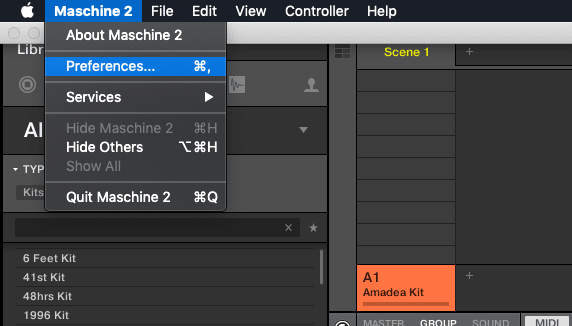
Now you’ll want to enter Maschine -> Preferences
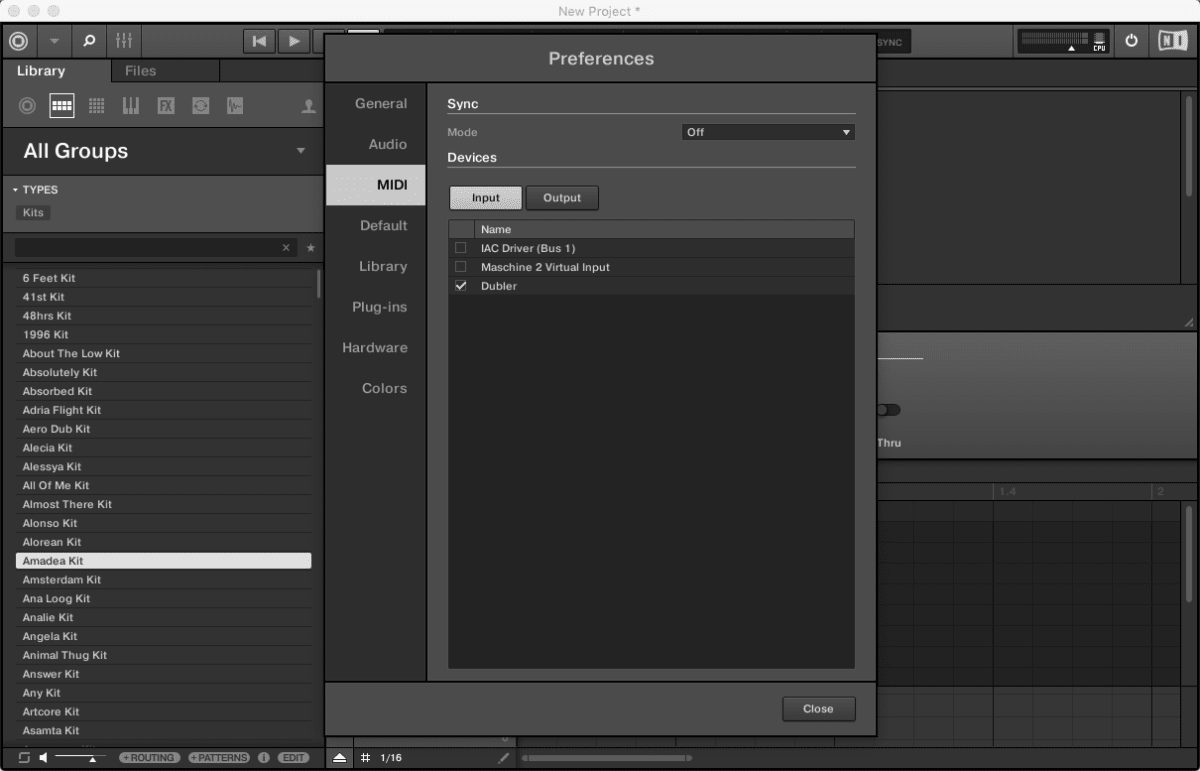
In the preferences enter the MIDI tab and make sure that Dubler is selected on the Input tab
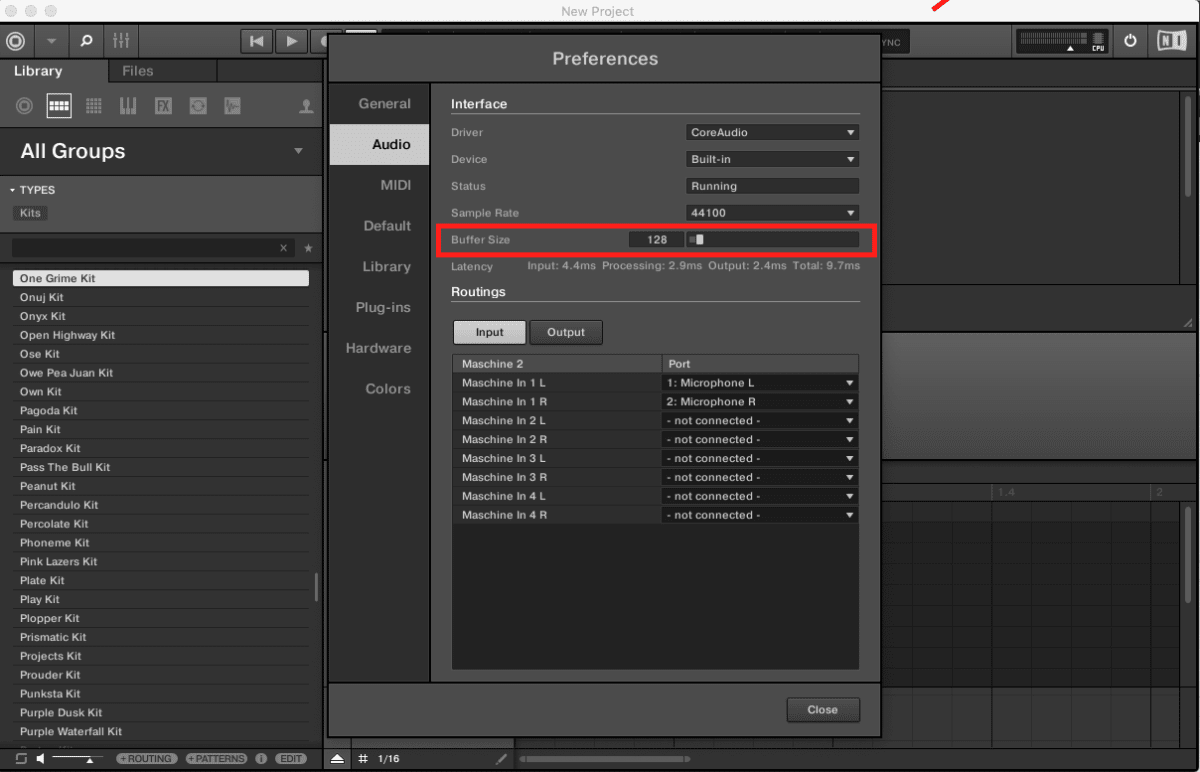
Next you’ll want to head to the Audio tab and make sure the buffer size is set to 128 samples or below. A lower buffer size will mean a lower latency when using Dubler, however this can be more CPU intensive and cause audio drop outs. Find the sweet spot that works for your setup
You can now click close.
To control a whole group using the triggers, select the knob on the left, go to Group -> Input
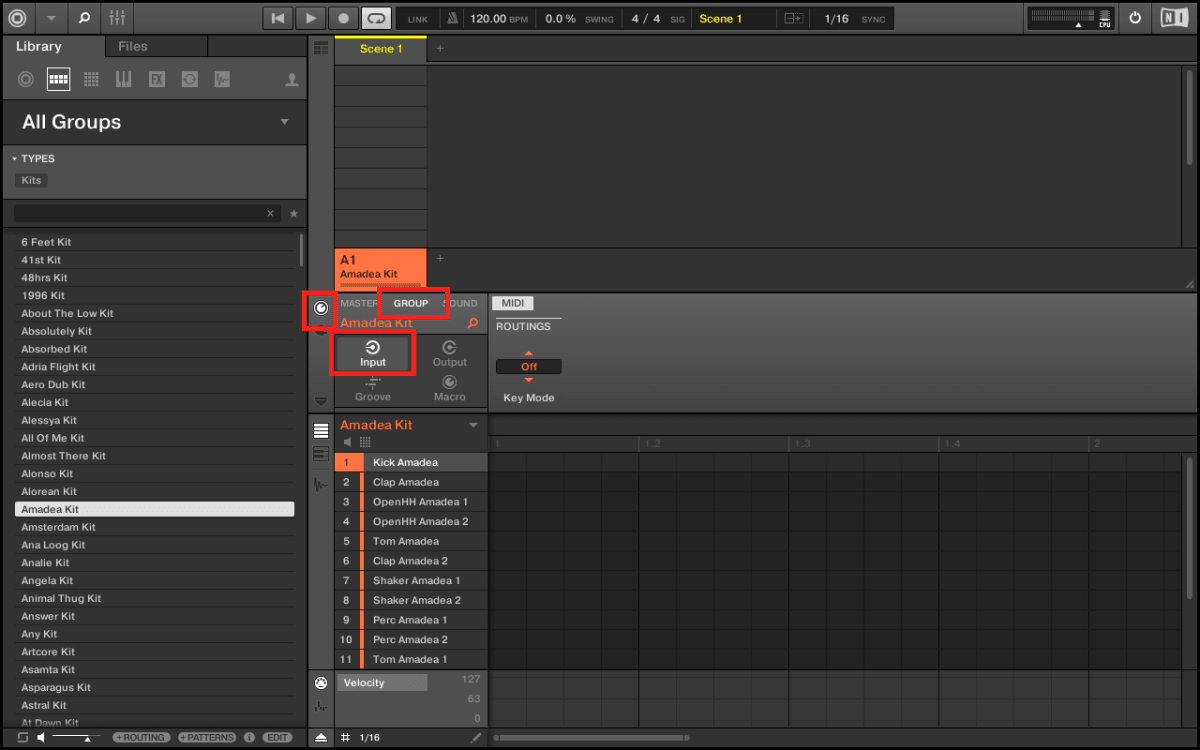
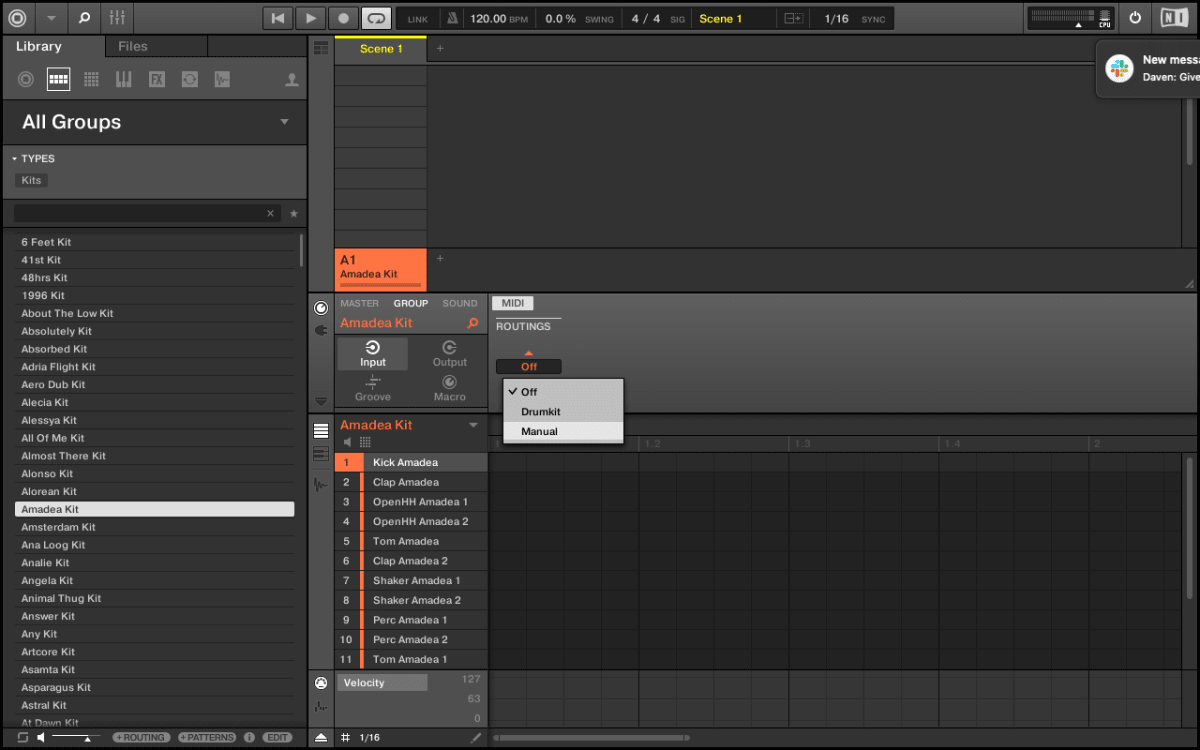
Above Key Mode select Manual
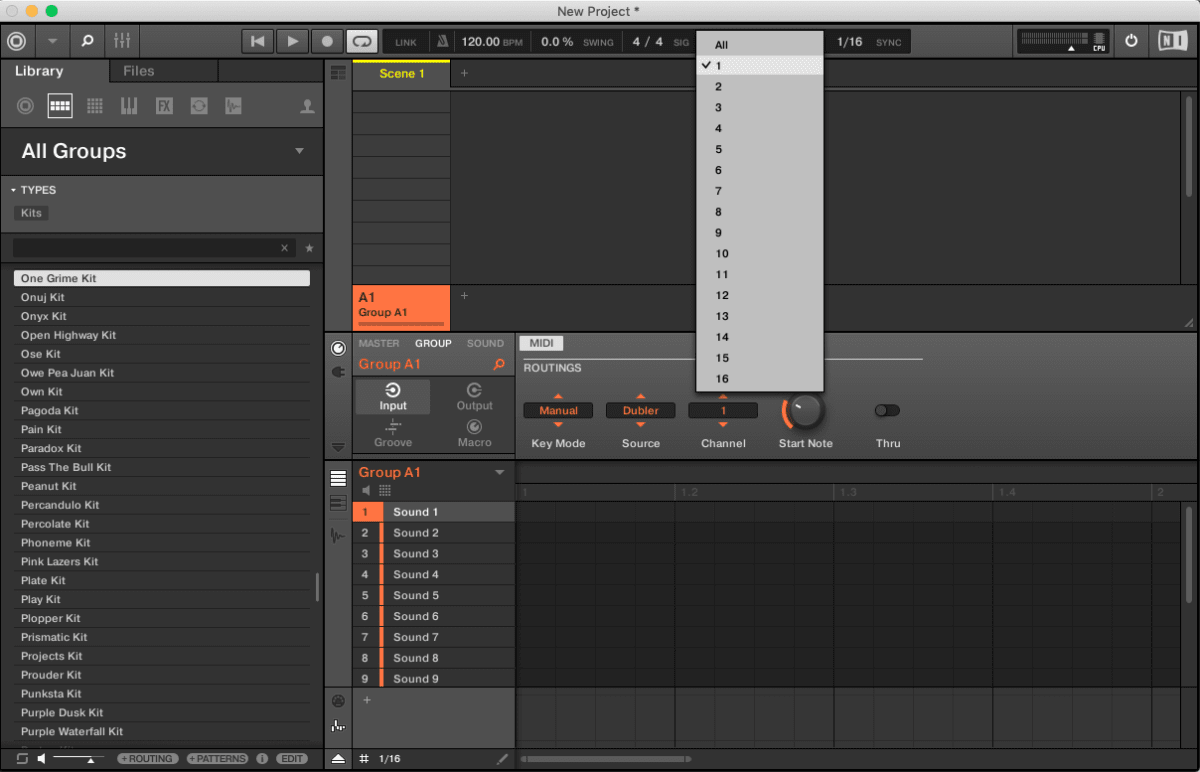
Select Dubler in source and then you can select the MIDI Channel that you wish to receive information from. If you are using triggers to control the Drum Group you’ll want to select MIDI Channel 10
Note: By Default Dubler sends pitch information on channel 1 and triggers on channel 10. Both of these can be changed within Dubler
You’ll now be able to play a whole group with the triggers. You can repeat this process on the sounds tab instead of group if you wish to control individual synths with just the pitch side for example.
To place patterns in, simply hit record at the top, and the beatbox or sing to place them in the grid.