
Working with Packs
Edit the samples behind your kits, build packs from your own audio files, and save custom kits you can use in any project.
Every kit in DubBox is built from a pack: the set of samples the kit plays, plus the settings for each one. The Packs tab is where you open that up. Nothing here changes how your triggers are trained - it only changes the sounds they play.
1. Kits and packs
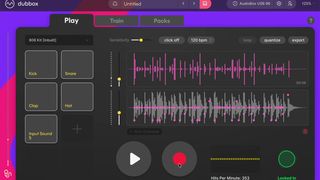
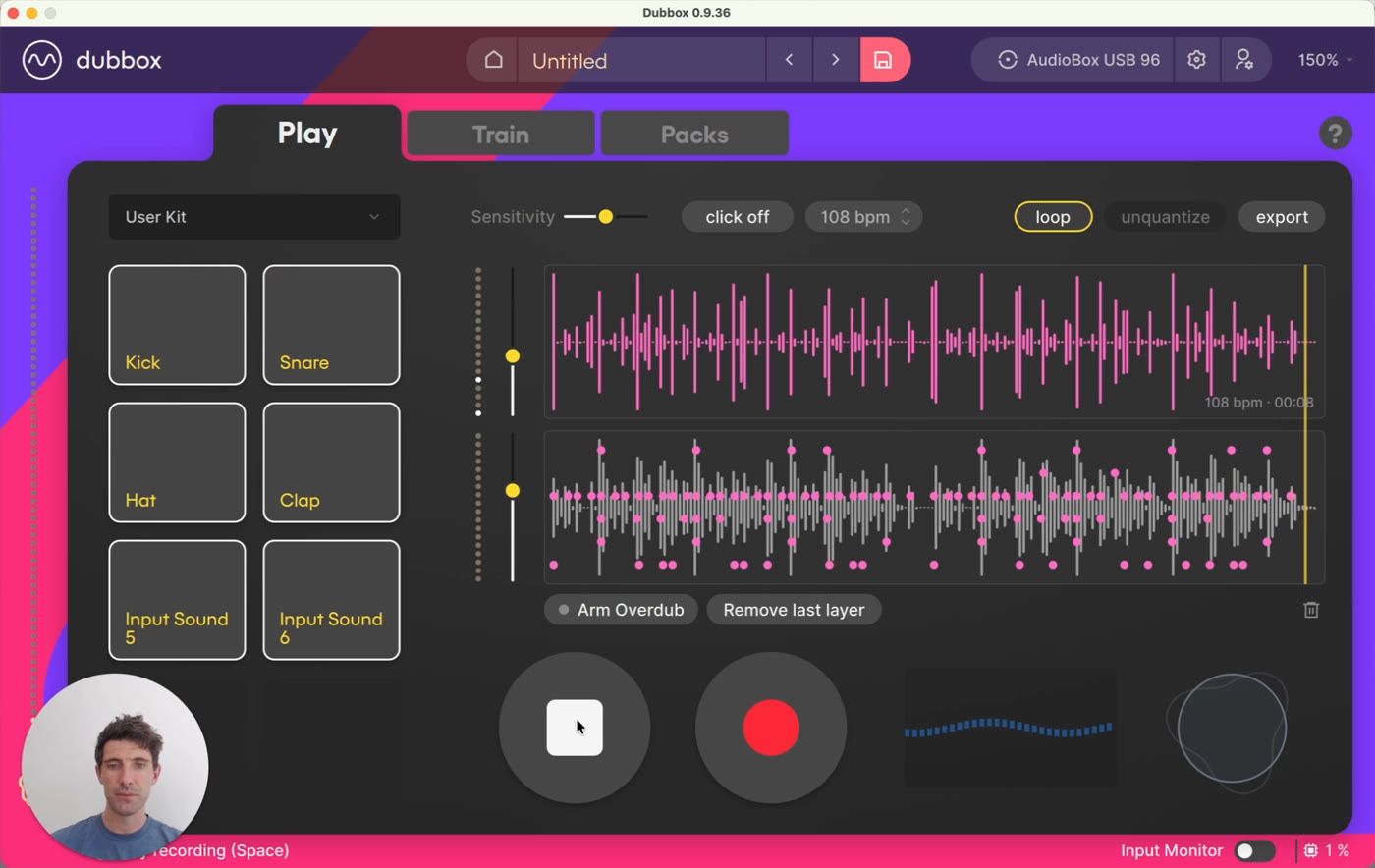
On the Play tab, the kit dropdown at the top left switches your whole loop between DubBox's ten inbuilt kits. Your beat isn't tied to the sounds you recorded it with, so switching kits can completely change the character of a loop.
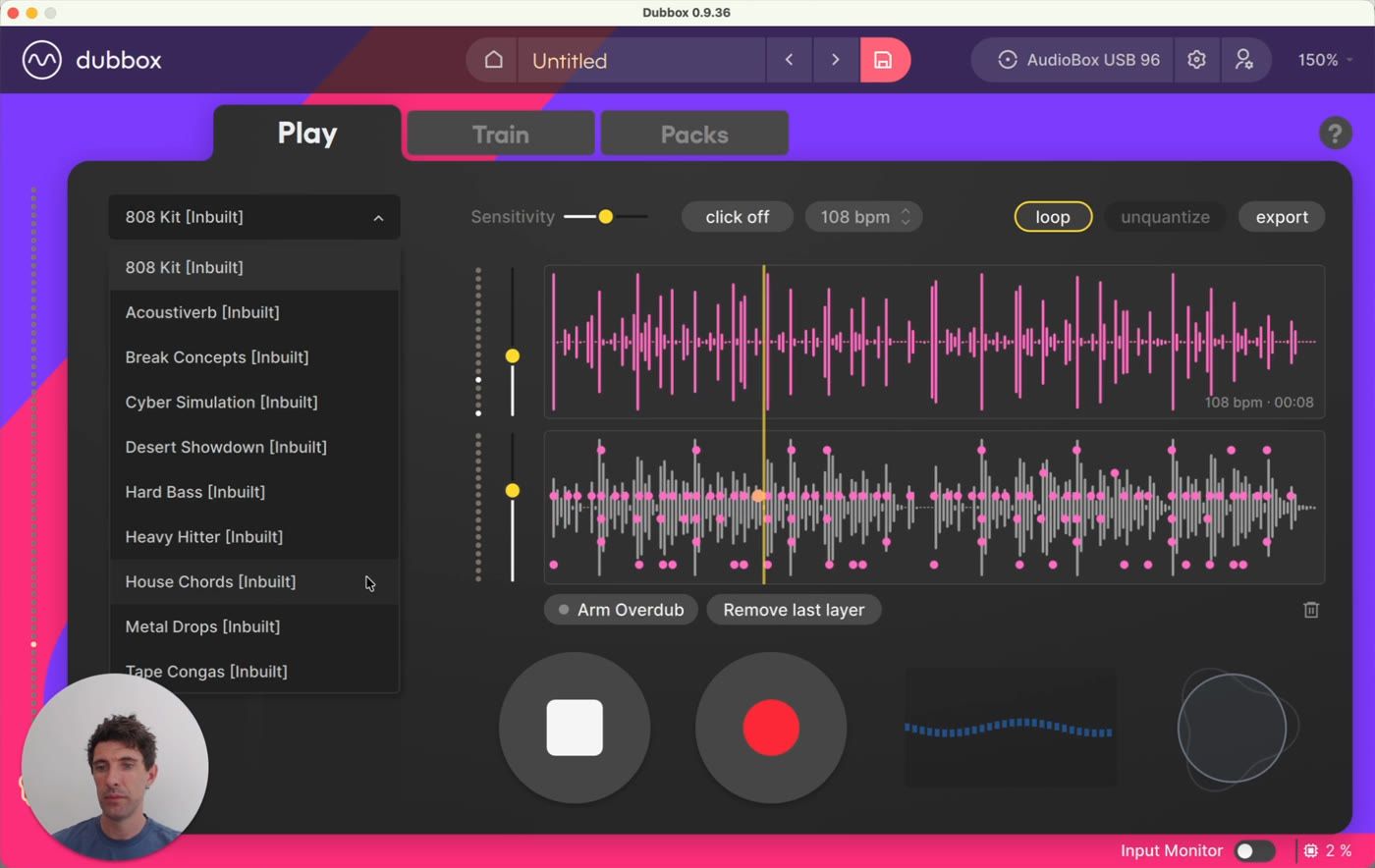
When you want to go further than swapping whole kits - tweaking individual sounds, or bringing in your own - head to the Packs tab.
2. A tour of the Packs tab
The Packs tab shows every sample in the current kit as a grid of pads. The kit dropdown at the top right chooses which kit you're editing, and the play button lets you audition your loop while you work.
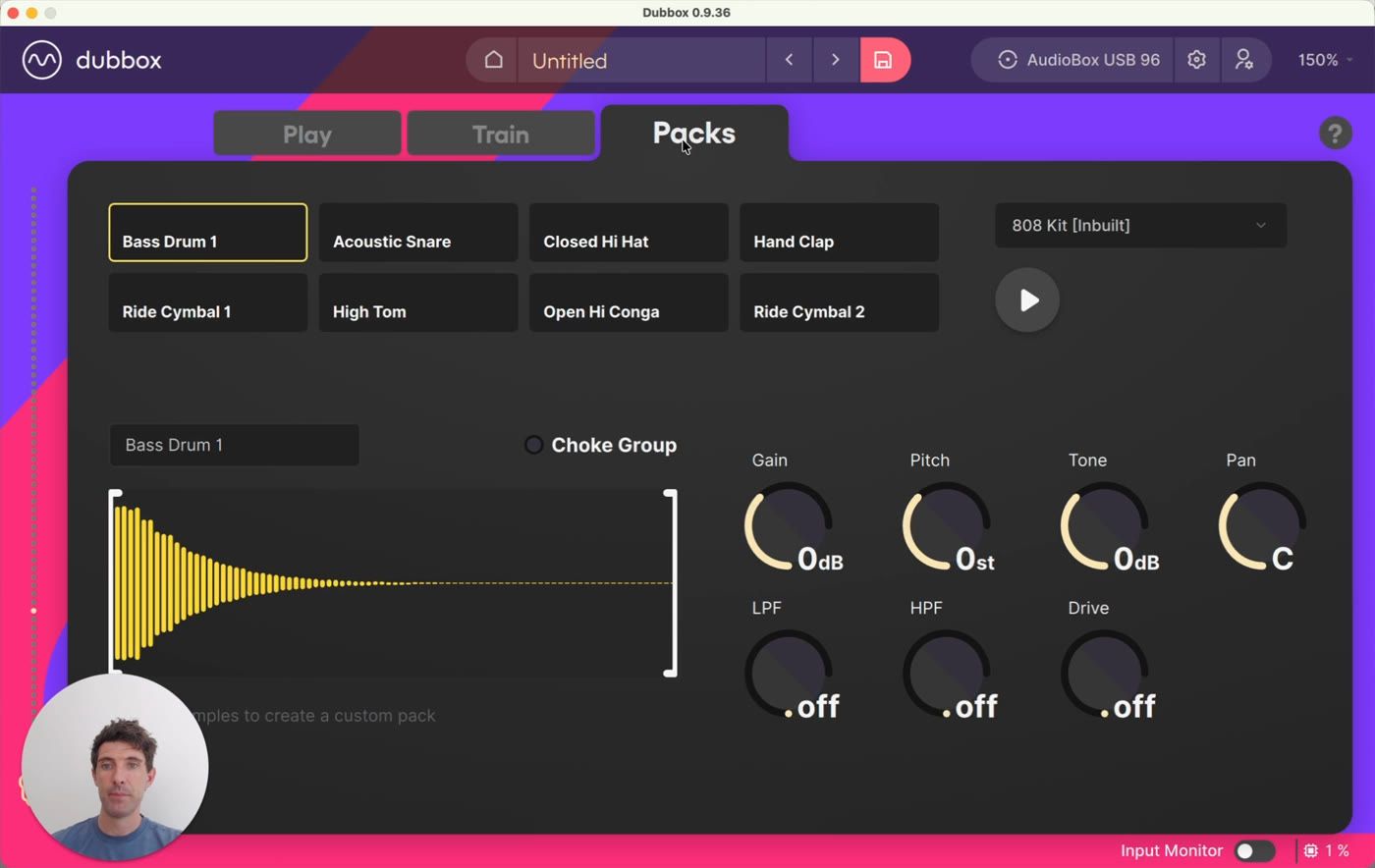
Select any pad and the editor below shows that sample's waveform and its settings:
Gain - the sample's level, in dB
Pitch - tune the sample up or down in semitones
Tone and Pan - shape the sound and place it in the stereo field
LPF and HPF - low pass and high pass filters
Drive - add saturation
Start and stop points - drag the markers on the waveform to change where the sample starts and stops playing
3. Edit a sample
Click a sample to select it - here, the snare of the 808 kit.
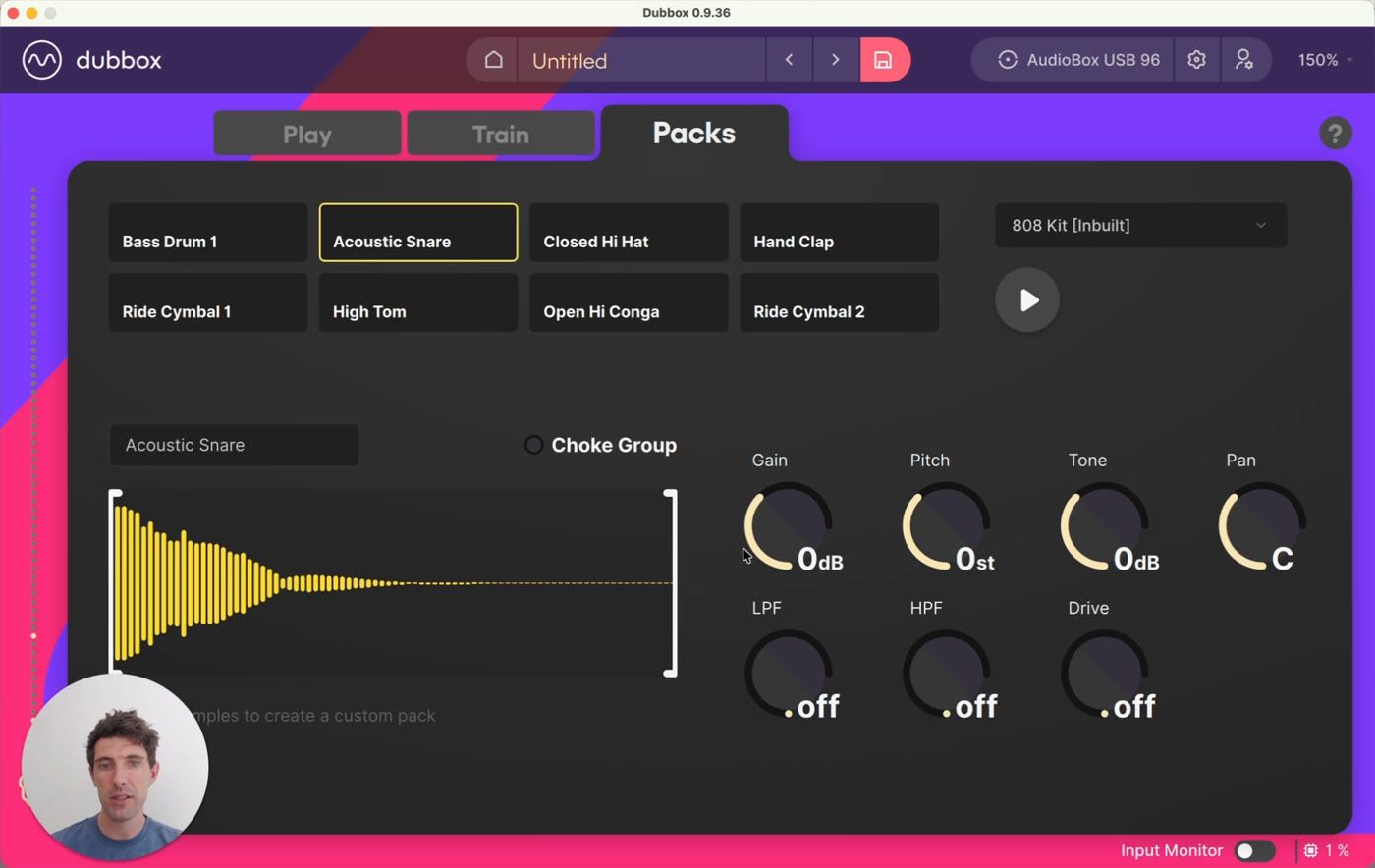
Now turn the knobs: raise the gain, pitch it up a few semitones, brighten or darken the tone, bring in a low pass filter, add some drive. Changes apply straight away, so keep your loop playing and shape the sound as you listen.
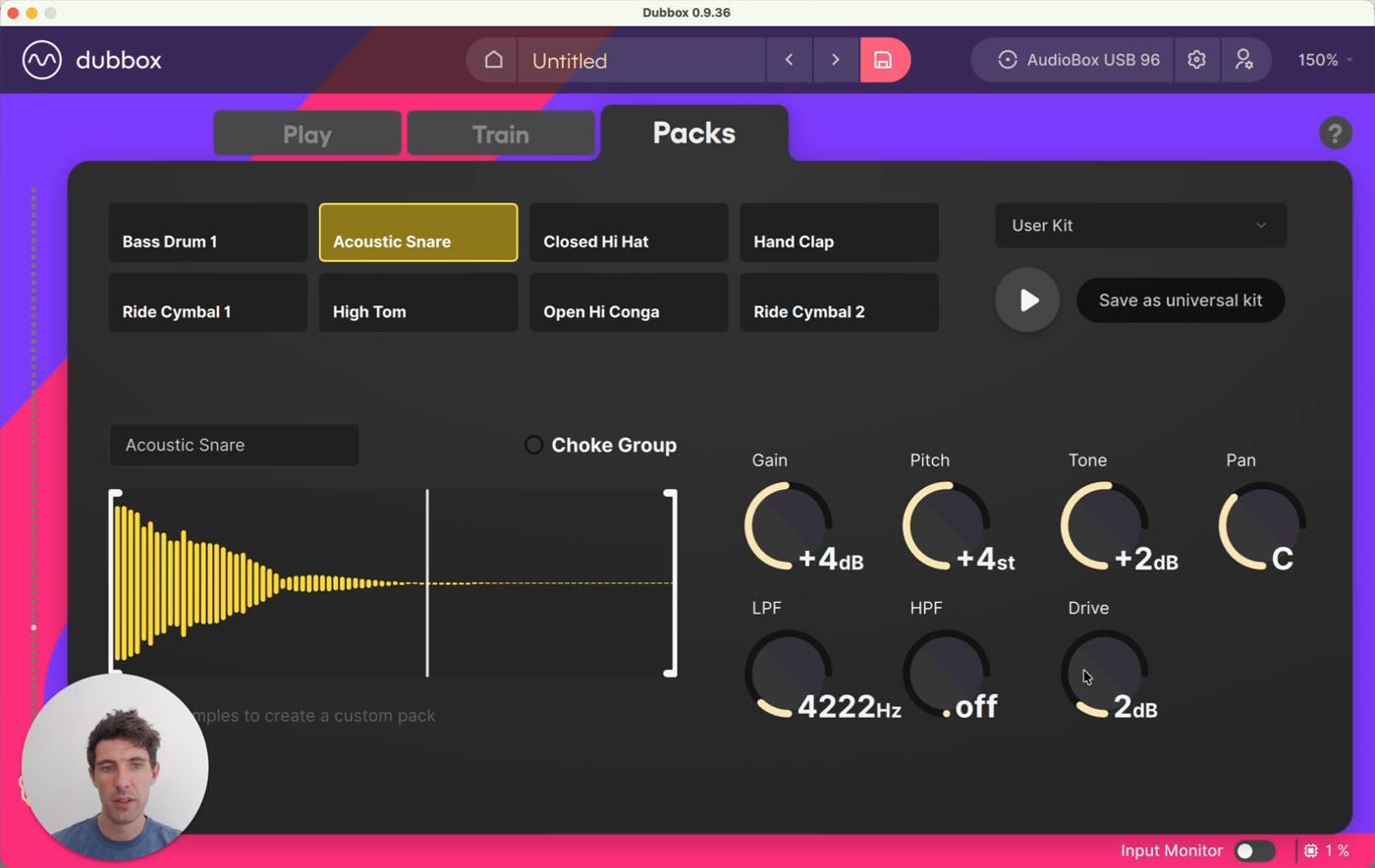
Your edits become a User Kit. As soon as you change anything in an inbuilt kit, the kit dropdown switches to User Kit - the inbuilt kits themselves are never overwritten, so you can always go back to the original.
4. Build a pack from your own samples
You're not limited to the inbuilt sounds. Drag an audio file from your computer onto any pad to load it into the pack. Replace one sample or all of them - that's how you build a completely custom pack out of your own sounds, with the same editing controls on every pad.
5. Choke groups
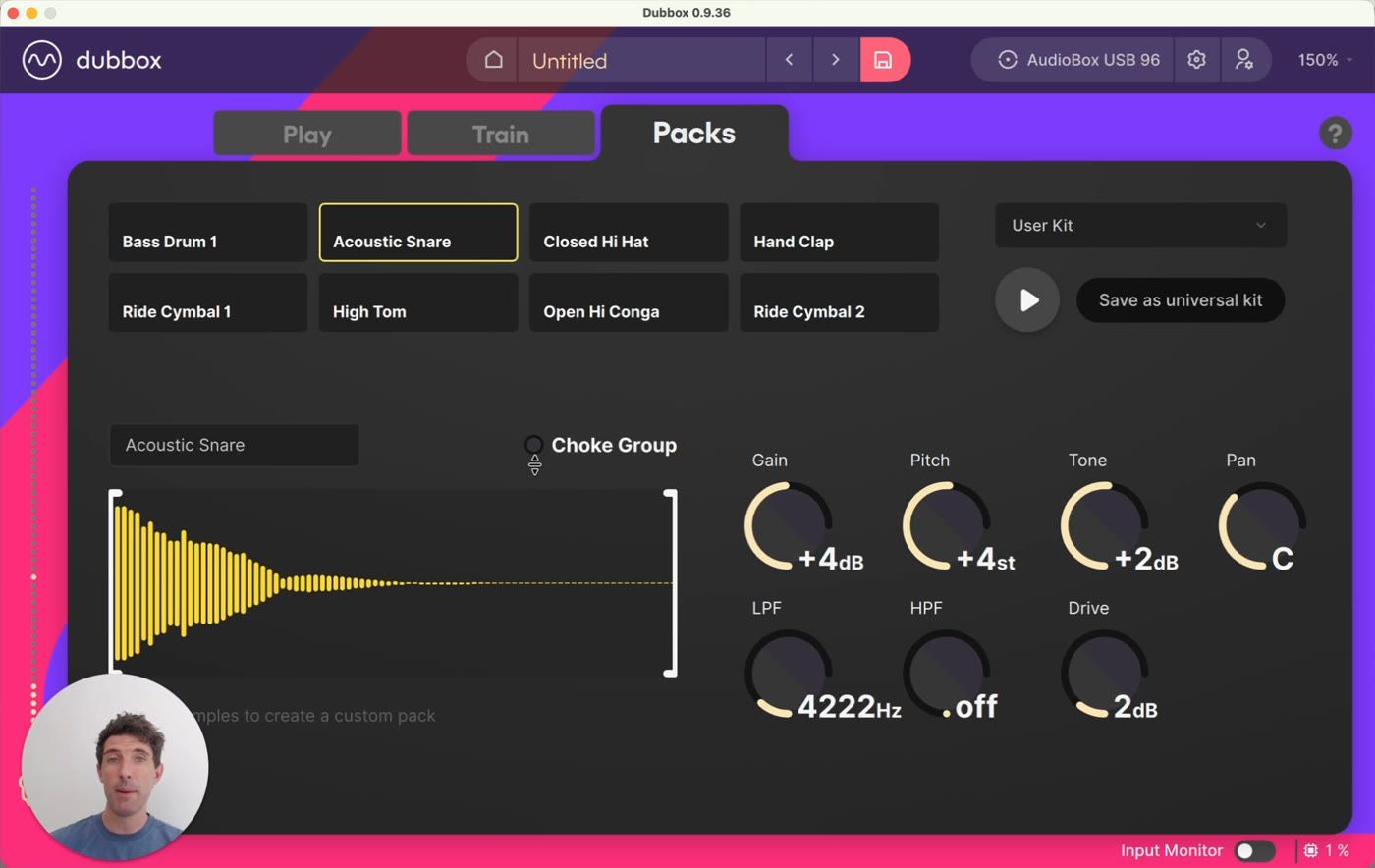
Some samples are long: a bass note, a held chord, a big cymbal. If they overlap each time a trigger fires, the result gets messy. Turn on Choke Group for those samples, and everything in the choke group cuts each other off, so only one plays at a time.
6. Save it as a universal kit
Happy with your edits? Click Save as universal kit and your kit becomes available in all your projects, not just this one. Saving your project also stores the packs you've created, so nothing is lost either way.
Back on the Play tab, your loop now plays through the kit you just built.
Where next?
Quick Start Guide - the full journey from fresh install to your first exported loop
More tutorials and support at vochlea.com