

Live MIDI Not Working on Windows 11
What's happening:
A recent Windows 11 update introduced a new system called Windows MIDI Services. This update contains a bug that breaks how third-party virtual MIDI ports work - including the virtual MIDI port that Dubler 2 relies on to send MIDI to your DAW.
This is a bug introduced by Microsoft, and Microsoft have acknowledged it.
A permanent fix is targeted for release by Microsoft as part of a Windows update at the end of April 2026. Until then, this page explains how to get Dubler 2 working again.
How do I fix it?
Option 1 (Recommended): Install Microsoft's preview fix.
Microsoft have released an early version of the fix that you can install right now. It fully resolves the issue and lets you use Dubler 2 exactly as normal. It does require enabling Developer Mode and downloading a file from Microsoft, but we've written step-by-step instructions below.
Option 2: Open your applications in a specific order
If you'd rather not install anything, you can work around the bug by following a specific sequence every time you start a session. No downloads required, but you'll need to do it every time.
When your PC is in Developer Mode, Dubler 2 is able to use work-in-progress tools from Microsoft that fully work around the bug. Once enabled, you won't need to change anything about how you work, just open Dubler and your DAW as you normally would.
Developer Mode is a standard Windows feature designed for software development and testing. Enabling it does not affect your day-to-day use of your computer.
Option 1 — Install Microsoft's preview fix (Recommended)
This fix was created by Microsoft specifically to address this bug. It is an early, unsigned build — which means Windows will show you a security warning when you download and run it. This is expected and safe. Because it hasn't gone through Microsoft's full internal signing process yet, Windows doesn't recognise it automatically, but it is a legitimate file from Microsoft.
The fix requires Developer Mode to be turned on. This is a standard Windows setting that doesn't meaningfully change how your computer works day-to-day.
How to enable Developer Mode:
Step 1 — Enable Developer Mode
Open Settings (press
Windows + I)Go to System, then selectFor developers, or depeding on your view Advancedthen findFor developers
Toggle Developer Mode to On
If prompted to confirm, click Yes
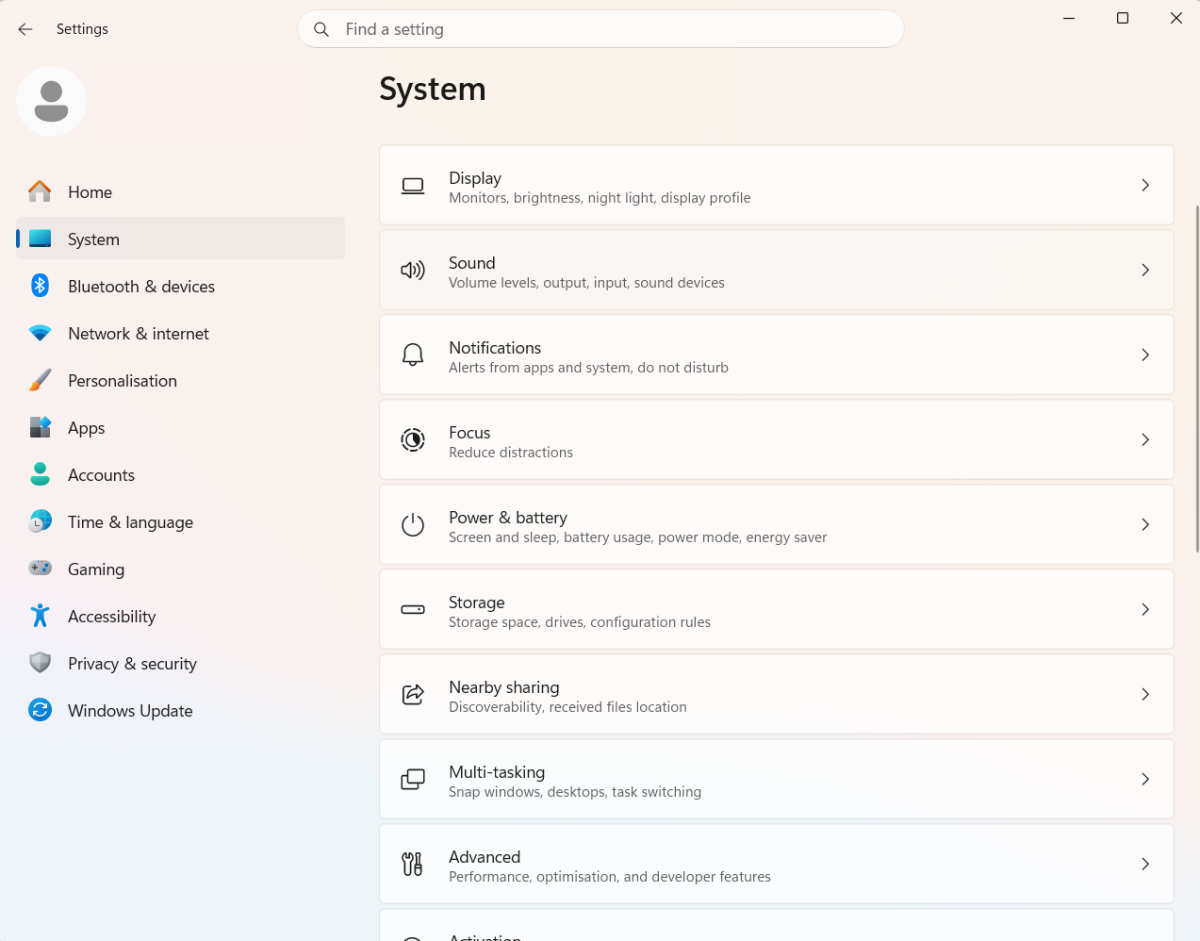
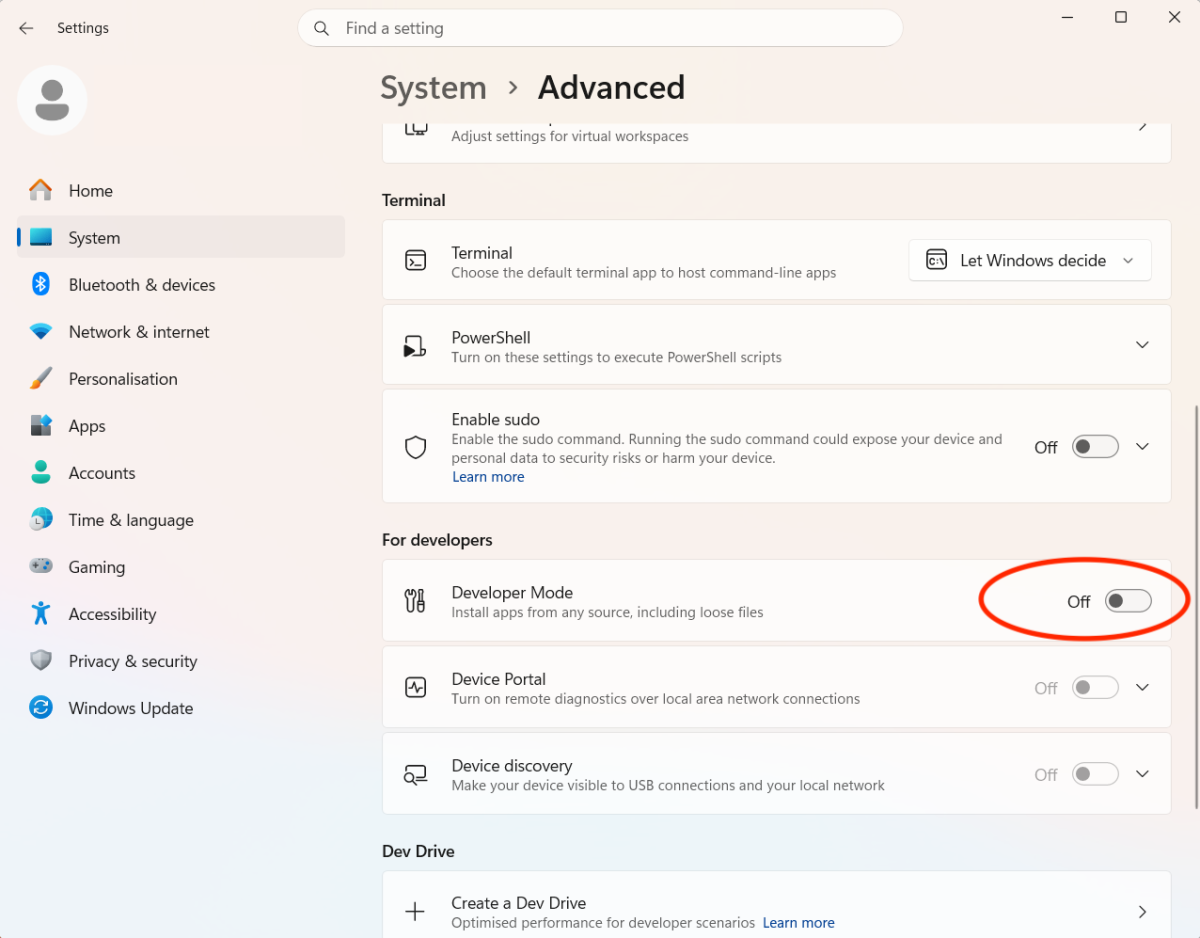
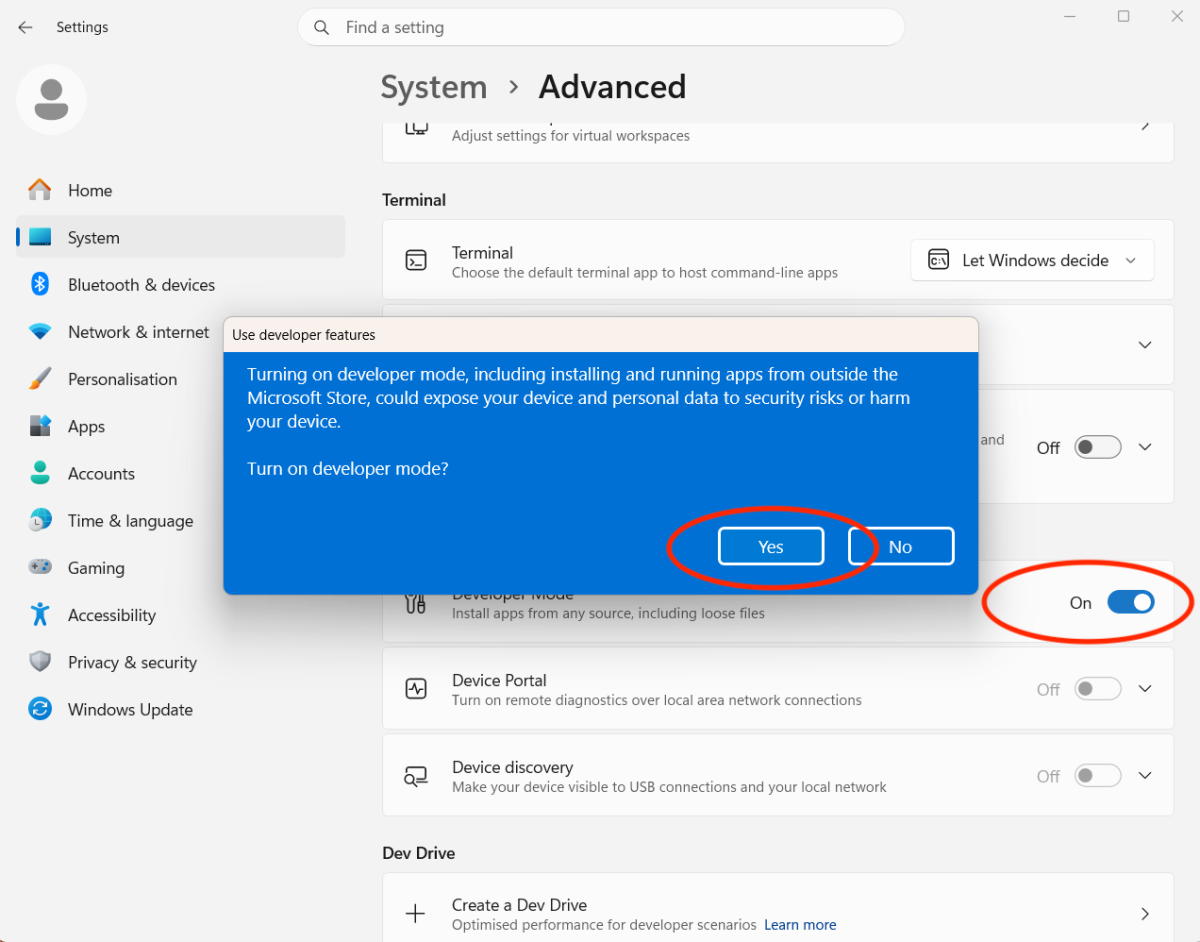
Step 2 — Download the fix
First, check what type of processor your PC has:
Press Windows + I to open Settings, go to System → About, and look at Processor or System type
If it says Intel or AMD, you need the x64 version
If it says Qualcomm or Arm, you need the arm64 version
Download the appropriate file here:
Step 3 — Get past the browser security warning
Because this file is unsigned, your browser will likely warn you when downloading it. Here's how to proceed in common browsers:
Chrome / Edge:After the download appears at the bottom of your screen or in your Downloads, click the arrow or three dots next to the file and select Keep or Keep anyway.
Step 4 — Run the installer
If Windows SmartScreen blocks the file when you try to run it:Click More info and then Run anyway.
Open the downloaded file and follow the installation steps. Once complete, restart Dubler 2 if it was already open.
That's it — Dubler 2 should now work exactly as normal. You won't need to change how you open your applications or follow any special steps.
Option 2 — Open your applications in specific order
If you'd prefer not to install anything, you can work around the bug by ensuring Dubler 2 launches before Windows MIDI Services starts. The bug means that if MIDI Services starts first, Dubler 2's virtual MIDI port doesn't get created correctly.
You'll need to follow these steps at the start of every session.
Step 1 — Close everything
Fully close Dubler 2, your DAW, and any other music software running in the background.
Step 2 — Open Command Prompt as Administrator
Click the Start menu, type cmd, right-click Command Prompt and select Run as administrator. Click Yes if prompted.
Step 3 — Stop the Windows MIDI Service
Type the following and press Enter:
net stop midisrv
You should see a confirmation that the service has stopped.
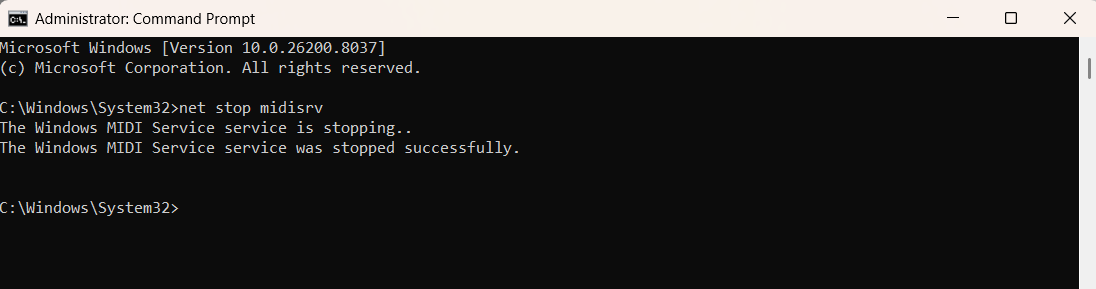
Step 4 — Open Dubler 2 first
Open Dubler 2 before anything else. This is the critical step.
Step 5 — Open your DAW
Now open whichever DAW you use. MIDI from Dubler 2 should appear and work as normal.
⚠️ Important: If your DAW was already open in the background, close it fully and reopen it after Step 4. It must be launched after Dubler 2.
This will be fixed permanently at the end of April 2026
Microsoft have confirmed to us the fix is targeted for inclusion in a Windows update at the end of April 2025. Once Windows updates, neither of these workarounds will be needed and Dubler 2 will work exactly as it always has — no action required on your part.